Mobile app

In-app Guide

Quick tour of the DRAPAI mobile app: where things live, what each control does, and how to run a try-on.

More detail on billing and edge cases lives in the FAQ.

Token packs: Pricing

Still stuck: Contact

  1. Three tabs sit on every main screen. Use them to switch tasks without losing your place.

    • Generate — start a virtual try-on from your photos.
    • Home — featured looks, recent results, wardrobe, and poses.
    • Studio — open the photo editor for adjustments and export.
    App bottom bar: Generate, Home, Studio
  2. Top bar on Home

    The header shows brand title and quick actions on the sides.

    • Token balance (left) — opens token purchase when you need more generations.
    • Settings — app preferences and account-related options.
    • Profile — your profile screen.
    Home header: tokens, settings, profile
  3. Home feed sections

    Scroll the home screen to open libraries and history.

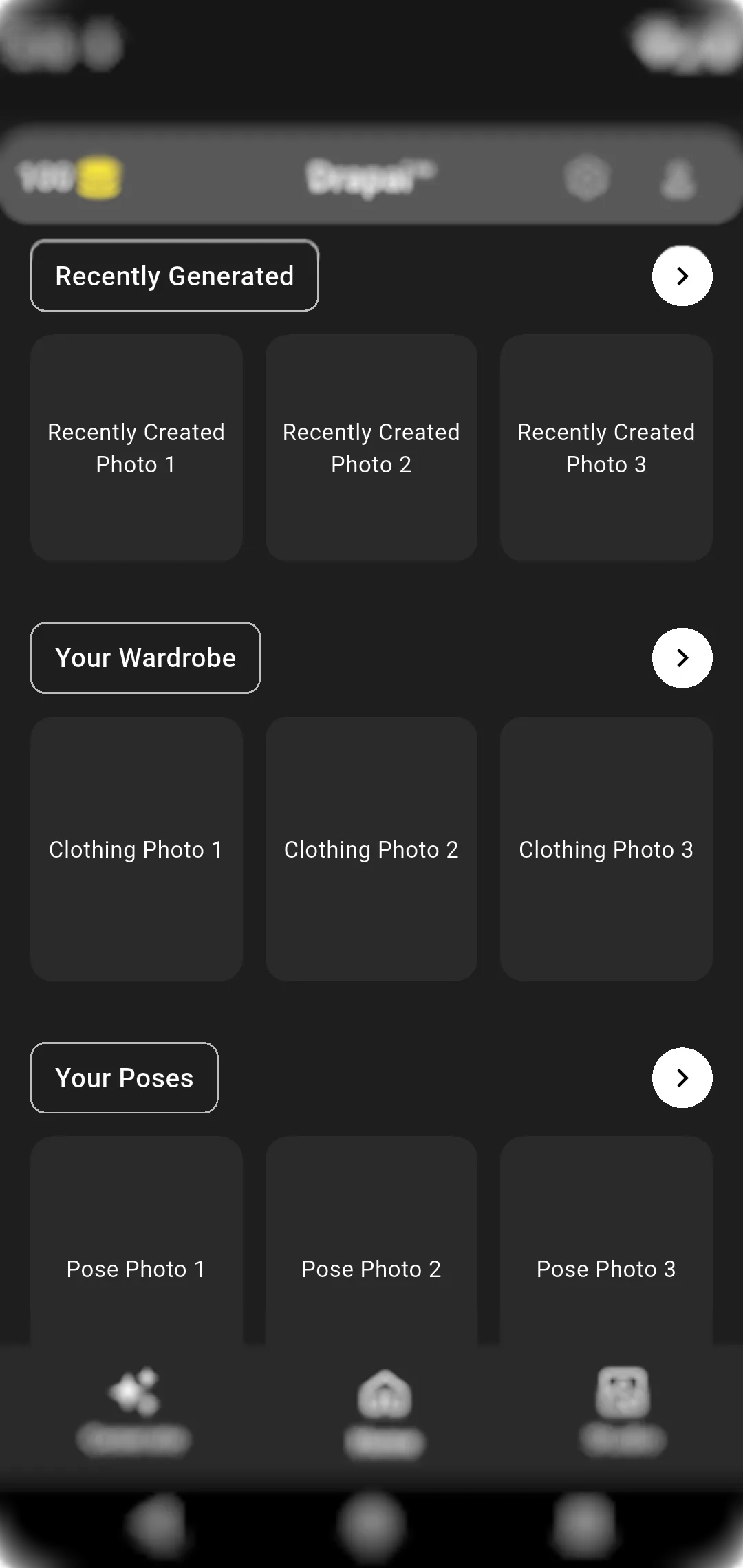
    • Recently Generated — grid of past try-ons; tap the row heading for the full list.
    • Your Wardrobe — clothing photos; opens the wardrobe gallery.
    • Your Poses — saved poses; opens the poses gallery.
    Home: carousel and section rows
  4. Try-on (Generate)

    Pick a photo of yourself and a garment image, choose where the outfit applies, set quality, then submit. The app requires all fields before it starts.

    • Your Pose — photo from your gallery.
    • Garment — clothing image.
    • Body region — upper body, lower body, legs, or dress.
    • Quality — standard, high, or premium.
    Generate screen: pose, garment, options
  5. Tokens and plans

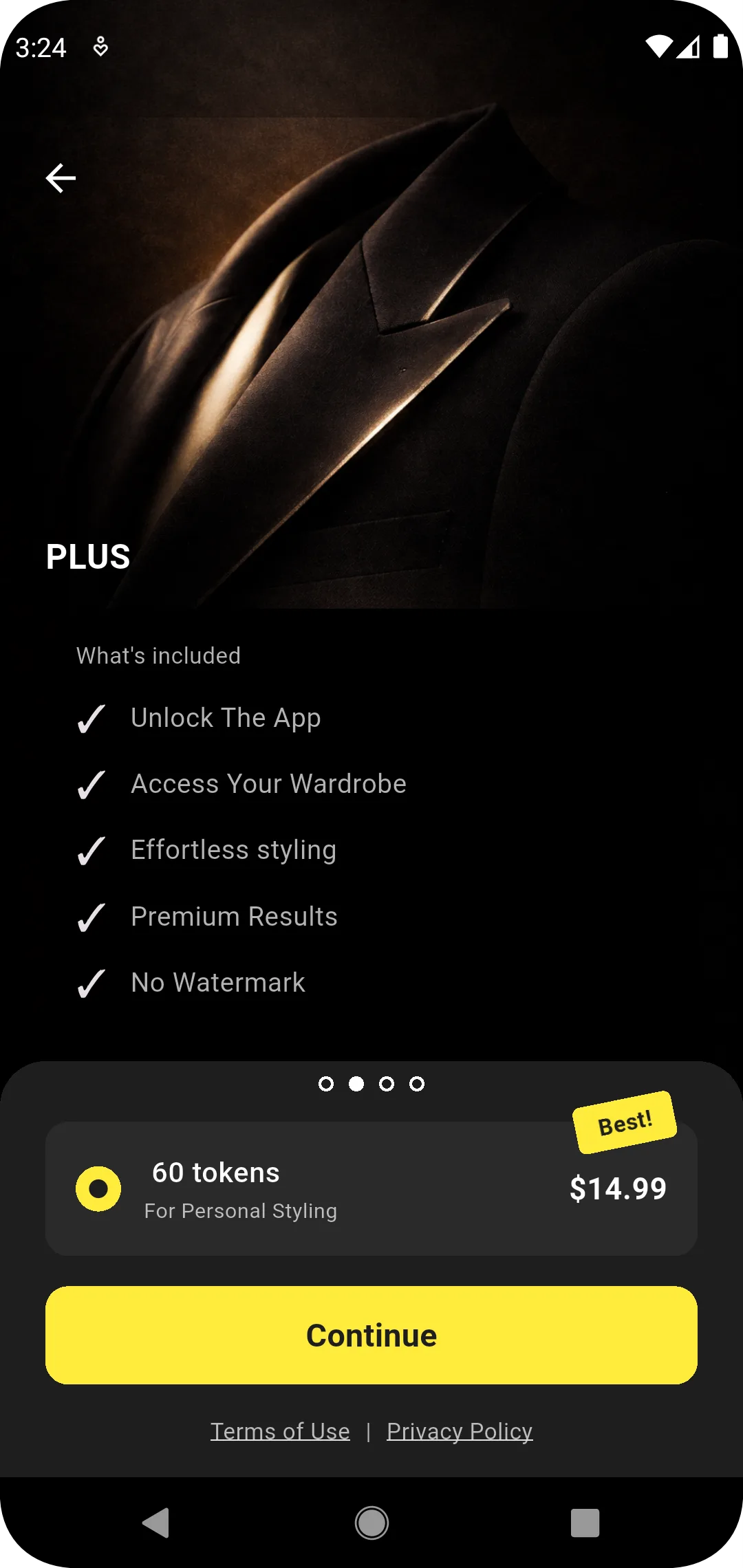
    Generations consume tokens. Buying packs and plan details are summarized on the site; in the app, use the balance in the header to top up.

    Token purchase screen
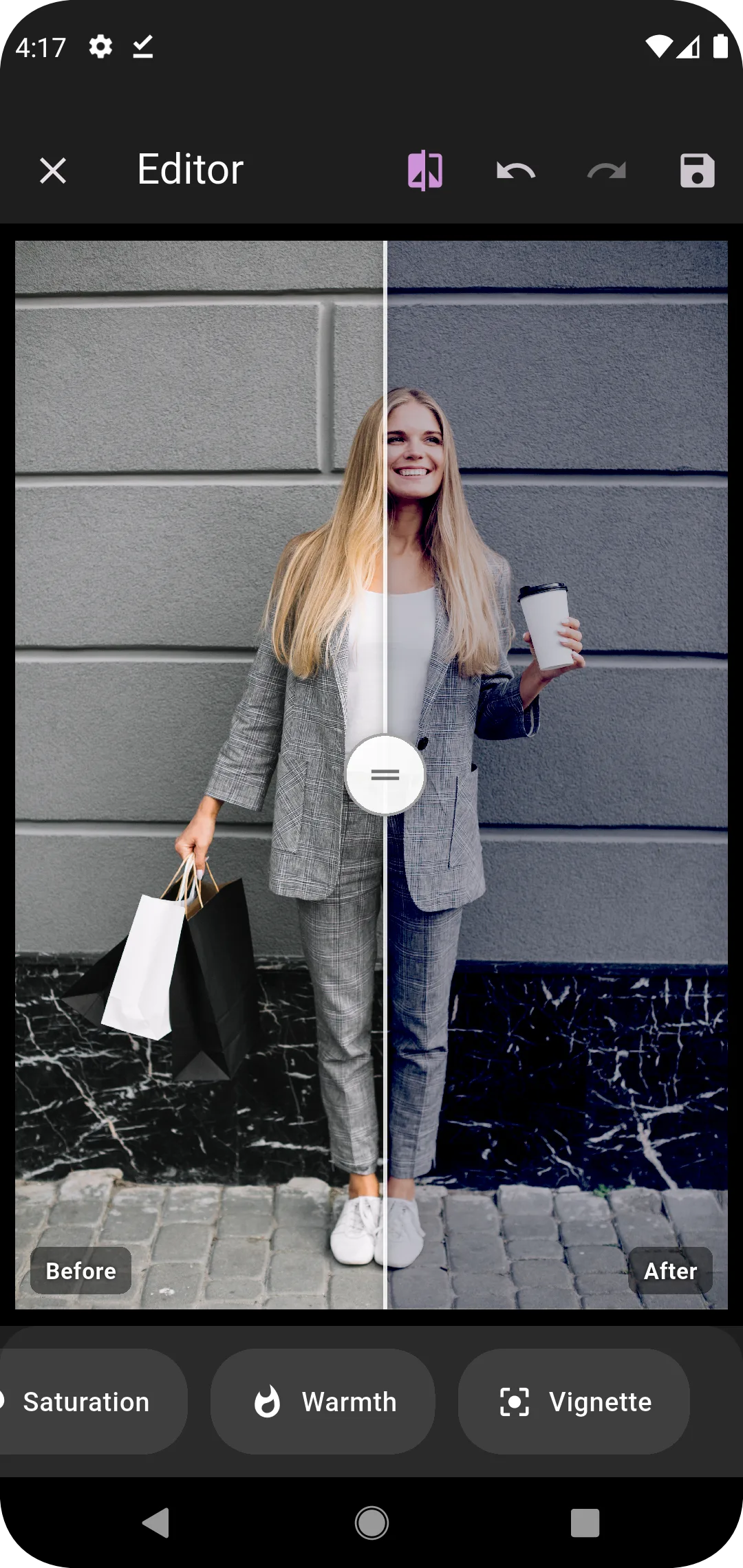
  6. Studio (photo editor)

    Load an image from the gallery or camera, adjust effects with the controls, compare before and after, then save or export when you are done.

    Studio editor with preview